At a Glance
Your laptop camera is the weakest link in your entire setup. You’ve got the nice monitor, the mechanical keyboard, the standing desk — and then your face shows up on Zoom looking like a 2008 Skype call. It doesn’t have to be this way.
I’ve been working remotely for years, and a decent external webcam is the single highest-ROI purchase for how you present yourself on calls. Not because you need to look pretty — because bad video is distracting. Your colleagues are squinting at a grainy, washed-out rectangle while you’re trying to explain an architecture decision. That’s friction you don’t need.
Here are the webcams worth buying in 2026, from the budget pick to the “I want broadcast quality on my standup.”
The Quick List
| Webcam | Best For | Resolution | Price Range |
|---|---|---|---|
| Logitech C920x | Budget / just works | 1080p | ~$60 |
| Logitech Brio 4K | Best all-around | 4K | ~$130 |
| Opal Tadpole | Laptop users | 4K | ~$99 |
| Insta360 Link 2 | AI tracking / presentations | 4K | ~$200 |
| Elgato Facecam Pro | Best image quality | 4K/60fps | ~$250 |
Best Budget Pick: Logitech C920x
The Logitech C920x has been the default recommendation for years, and it still holds up. 1080p, decent autofocus, built-in stereo mics (though you should use a real headset anyway). It’s the Honda Civic of webcams — nothing exciting, nothing broken.
Why it works for devs: Plug it in, forget about it. No software required. Works on Linux without drama, which is more than I can say for some of the fancier options.
The catch: The image quality is fine, not great. In low light, it gets noisy fast. If your home office has a window behind you, you’ll look like a witness protection silhouette.
Best All-Around: Logitech Brio 4K
The Logitech Brio 4K is where things get noticeably better. 4K resolution (though most calls downsample to 1080p), HDR for handling mixed lighting, and a wider field of view you can crop in software.
Why it works for devs: The HDR is the real selling point. If you’ve got a window behind or beside you, the Brio handles it without turning you into a shadow. The built-in Windows Hello / IR sensor is nice if you’re on Windows, less relevant for Mac users.
The catch: Logitech’s Tune software is mediocre. Set it once, then close it forever.
Best for Laptop Users: Opal Tadpole
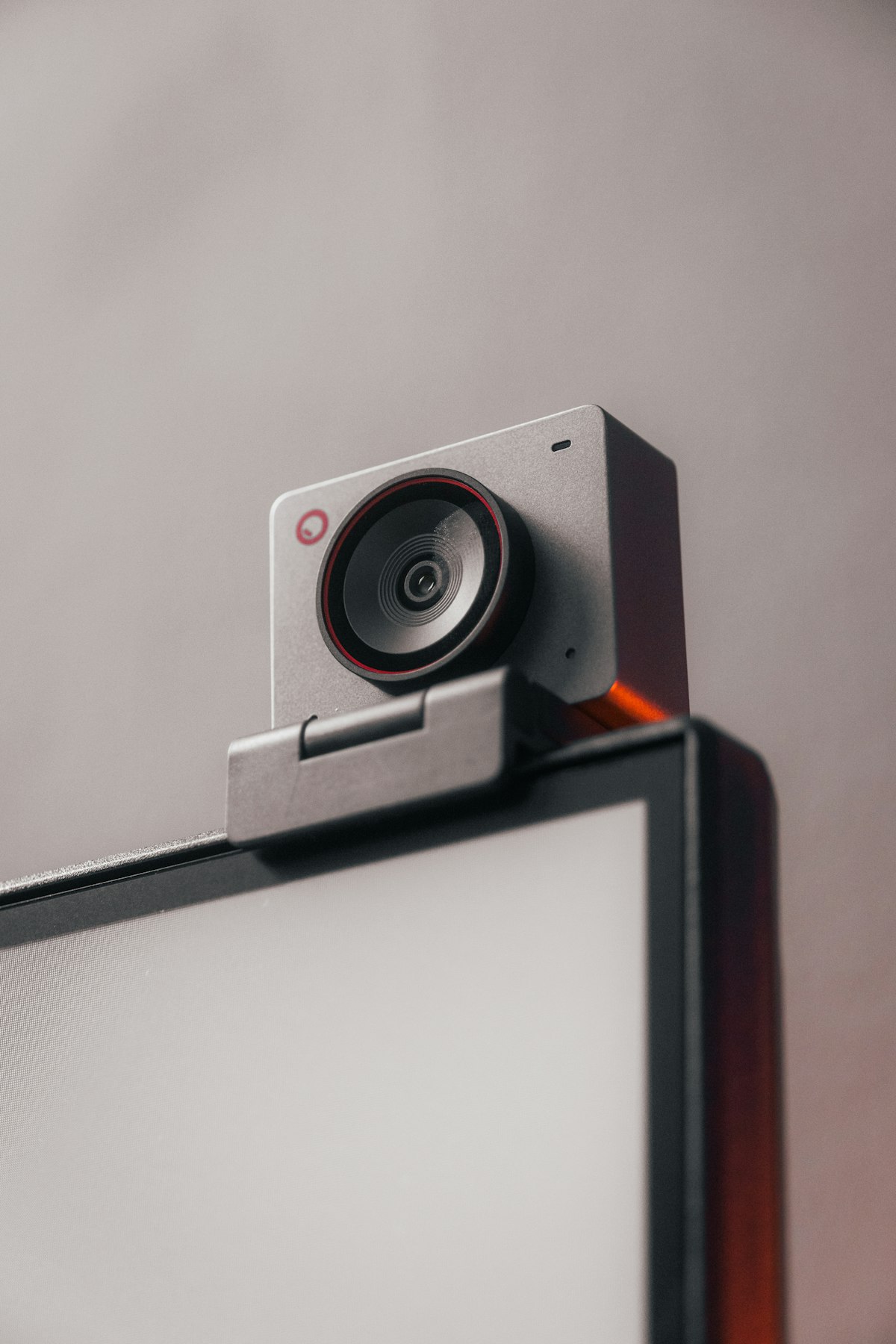
The Opal Tadpole is purpose-built for laptop users who want a better camera without a bulky clip-on. It’s a slim webcam that sits on your laptop lid, roughly the size of a thick pen. The sensor punches well above what any built-in laptop camera delivers.
Why it works for devs: If you work from coffee shops, coworking spaces, or move between a desk and the couch, this is the one. It travels. The image processing is handled on-device, so it looks good without needing companion software running.
The catch: It’s USB-C only, and the cable is short by design. If you’re mounting this on a desktop monitor, look at the other options instead.
Best for Presentations: Insta360 Link 2
The Insta360 Link 2 has a motorized gimbal that physically tracks your face as you move. It also does overhead mode — point it straight down to show a desk, a notebook, or hardware you’re debugging.
Why it works for devs: The overhead desk mode is surprisingly useful for hardware debugging, whiteboard sketches, or showing physical prototypes during a call. The AI tracking means you can stand up, pace, grab a coffee, and the camera follows you.
The catch: The gimbal makes a faint whirring noise when tracking. Most mics won’t pick it up, but if you’re in a dead-silent room, you might notice. Also, the companion app is required for gesture controls, though basic video works without it.
Best Image Quality: Elgato Facecam Pro
The Elgato Facecam Pro is the webcam for people who care about image quality the way they care about their terminal font. Sony sensor, 4K at 60fps, manual focus ring on the barrel, and Elgato’s Camera Hub software gives you real controls — exposure, white balance, sharpening, noise reduction.
Why it works for devs: If you also stream, record videos, or create content alongside your day job, this pulls double duty. The image quality is close to a DSLR-as-webcam setup without the hassle of capture cards and lens caps.
The catch: At ~$250, it’s the priciest option here. And you’re paying for quality that most video call compression will flatten. If you only do Zoom standups, this is overkill.
What Actually Matters in a Dev Webcam
After testing various webcams over the years, here’s what I’ve learned actually matters:
Low-light performance beats resolution. Your office at 6 PM in winter matters more than whether you’re pushing 4K pixels. HDR and a good sensor trump megapixel counts every time.
Autofocus should be invisible. Bad autofocus hunts back and forth when you shift in your chair. Good autofocus locks on your face and stays there. The Brio and Facecam Pro are best here.
Field of view is personal. Wide angle shows more of your room (messy bookshelf included). Narrow angle isolates your face. Most webcams let you adjust this in software.
Built-in mics are a backup, not a plan. Every webcam mic sounds like you’re in a tunnel. Use your headphones or a dedicated mic.
The Recommendation
For most developers doing daily standups and occasional pair programming sessions: get the Logitech Brio 4K. It’s the sweet spot of price, quality, and low-light handling. Plug it in, tweak the settings once, and look like a professional on every call.
If you travel with your laptop, the Opal Tadpole is worth the premium for portability alone.
If you’re on a tight budget, the C920x at $60 is still a massive upgrade over any built-in camera. Don’t overthink it.
Your face is on screen for hours every day. It’s worth $130.